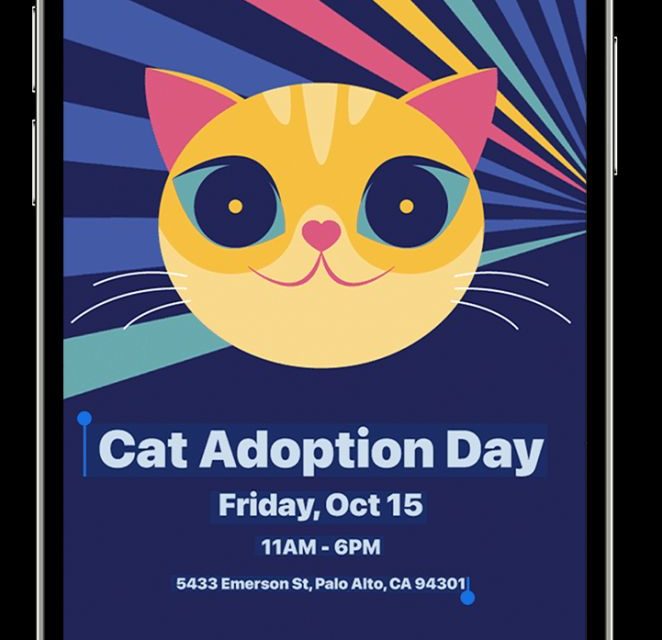
With iPadOS 26 you can use Live Text to get information from photos, videos, and images.
Live Text recognizes information within your photos, videos, and images you find online. That means you can make a call, send an email, or look up directions with a tap. Your iPhone or iPad can also speak aloud Live Text with Speak Selection.
You can also use Live Text in the Camera app or when using Camera in apps like Notes or Reminders — point your camera at a photo or image with text, then tap the Live Text button (a great circle with a square box with horizontal lines).
To turn on Live Text for all supported languages:
- Open the Settings app.
- Tap General.
- Tap Language & Region, then turn on Live Text.
To use Live Text, you need an iPhone XS, iPhone XR, or later with iOS 15 or later.
Live Text is also available on iPad Pro (M4) models and iPad Air (M2) models, iPad Pro 12.9-inch (3rd generation) or later, iPad Pro 11-inch (all models), iPad Air (3rd generation) or later, iPad (8th generation) or later, and iPad mini (5th generation) or later with iPadOS 15.1 or later.
To use Live Text for video, you need iOS 16 or later or iPadOS 16 or later.
Copy text in a photo, video, or image
- Open the Photos app and select a photo or video, or select an image online.
- Touch and hold a word and move the grab points to adjust the selection. If the text is in a video, pause the video first.
- Tap Copy. To select all of the text in the photo, tap Select All.
After you copy the text, you can paste it in another app or share it with someone. To highlight all text in a photo or image, select a photo or image, then tap the Live Text button in the lower-right corner of the photo.
Article provided with permission from AppleWorld.Today